12 - Working with Capture TCL
Overview
OrCAD X Capture includes a scripting functionality that allows you to execute a Capture command through a command prompt. Capture also provides the facility to store and later replay the command.
Every Capture command is logged in the form of a TCL script command. This logged command is registered with a TCL interpreter. When the command is played back, Capture uses the TCL interpreter to retrieve the command and run it in Capture. However, this process is completely abstracted from Capture. This makes logging and replaying of a set of commands an intuitive and simple task.
The user resources are better utilized to identify the type of script (set of steps) that is required for a specific task.
Using the Capture Command Window
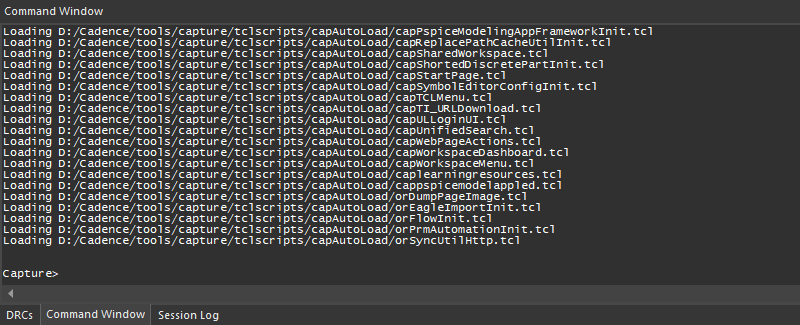
You use the Capture Command window to run a TCL command. When you perform any operation (function) in Capture, the associated command is registered with the TCL interpreter and the command is logged in the Command window.
- To open the Command window, right-click the Capture menu bar and choose Command Window. Alternatively, choose View– Command Window from the main menu.
The Command window displays with the capture> prompt.
Registering and Logging TCL Commands
When you perform any operation in Capture, the associated command is registered with the TCL interpreter and the command is logged in the Command window.
Menu Commands
In Capture, you perform operations that include menu commands. These commands are logged with the TCL interpreter as menu commands.
For example, to open a new design you choose File – New – Design.
As soon as you complete the menu selection, the associated command is registered with the TCL interpreter and the command is logged in the Command window as:
Menu “File::New::Design”
Similarly, the TCL command to open the part editor for a selected part on a schematic is:
Menu “Edit::Part”
Notice, when you perform any operation that is associated with a Capture menu, the associated command syntax includes the text Menu followed by the menu selection.
You can use this procedure to easily identify the TCL command associated with any operation in Capture.
Page Editor Commands
You can also log and register any operation in a schematic page.
For example, if you select or deselect all the objects on a schematic page, the associated TCL commands are:
SelectAll
UnSelectAll
Similarly, the following command places a wire with the co-ordinates of the start point at 1, 3 and end point at 6, 3:
PlaceWire 1 3 6 3
Project Manager Commands
You can log and register commands for operations performed in the project manager. For example, the following command selects the project item with the name Page1:
SelectPMItem "Page1"
The command to open a page Page1 in the schematic folder BENCH is:
OPage “Page1” “BENCH”.
Similarly, to identify a command, you perform the required operation in the project manager and the command is logged in the Capture Command window.
Running a TCL Command
To run a TCL Command in the Command window, type the command in the Command window and press Enter. If an error occurs while running the command, the error message is displayed in the Command window.
Besides the Capture TCL commands, you can also run all the native TCL commands from the Capture Command window.
For example, the following native TCL command returns the absolute path of the current (present) working directory:
pwd
And the command to change the working directory:
cd
Creating a Capture TCL Script
You can create a Capture TCL script manually in any text editor. Another way is to run a series of steps in Capture and record the associated commands. When you record TCL commands corresponding to the Capture commands, you can create a:
- TCL Script for all Capture Commands
- Creating TCL Script for Specific Capture Commands
TCL Script for all Capture Commands
When you perform an operation in Capture, the associated TCL command is registered with the TCL interpreter. The command is logged to a Capture TCL file. In addition, the command displays in the Capture Command window.
By default, the TCL logging feature is disabled in Capture. To log each command that you run in Capture to a TCL script file, you need to run the SetOptionBool command in the Capture Command window:
SetOptionBool Journaling TRUE
If you are in the TCL command logging mode, you can view each Capture command that is run in the Command window. Use the SetOptionBool command to enable viewing of the corresponding TCL command for each Capture command in the Command window.
SetOptionBool DisplayCommands TRUE
SetOptionBool command with the FALSE argument:SetOptionBool DisplayCommands FALSE
By default, the display of TCL commands is disabled in the Command window.
Location of the TCL File
If you enable TCL logging in Capture, a TCL file is created in the Temp\CAPTURELOG directory for each Capture session.
The location of the Temp directory is defined in the following order of preference:
- The path specified by the
TMPenvironment variable - The path specified by the
TEMPenvironment variable - The path specified by the
USERPROFILEenvironment variable - The
Windowsdirectory
This directory contains the Capture TCL file OrCaptureLogFile.captcl along with all the support files required to run the script.
Capture Dialog settings in TCL
When you open a dialog box from a menu, such as Options – Preferences, the Capture TCL logging feature saves the complete dialog settings to an Xml file. This file is placed in the same location as the TCL file for the current session of Capture.
For example, to annotate a design you use the Annotate dialog box.
The associated TCL command for this operation is:
Menu "Tools::Annotate" | DialogBox "OK" "C:/Temp/CAPTURELOG/Wed_Oct_11_14_34_45_2023/Packaging_6.xml"
Notice that an Xml file is one of the arguments in the TCL command. Also, notice the location of the Xml file is the same as the location of the TCL file for the current Capture session.
The location of the CAPTURELOG directory in the above example is C:\Temp. However, this may change depending on the conditions described in Location of the TCL File.
Creating TCL Script for Specific Capture Commands
When you turn on TCL script logging, the TCL commands for all the Capture commands that you run are logged to the TCL session file. However, you can also create a TCL script with a specific set of Capture commands.
To create a script of a set of Capture commands, do the following:
- Right-click in the Capture Command window and choose Clear All.
- Perform the steps to record the corresponding TCL commands.
- After completing the set of Capture steps, right-click in the Command window and choose Save.
- In the Save TCL Script dialog box, specify the name and location of the script.
Xml is saved to the session TCL file location. For information on TCL file locations, see TCL Script for all Capture Commands.Replaying a Capture TCL Script
After creating a Capture TCL script (for details see Creating a Capture TCL Script), you can replay the script to run the set of commands defined in the script. You can replay the recorded TCL script from the Capture Command window or from the Windows Command line.
- Running TCL Script in Capture
- Running TCL Script in Windows
Running TCL Script in Capture
You can run a TCL script directly from the Capture Command window using the source command.
source <Script Path and Name>
For example, to run the script, D:\Cadence\tclsamples\selectObjs.tcl
source D:/Cadence/tclsamples/selectObjs.tcl
- To specify a file location in a TCL command argument, you need to use the
/(forward slash) path separator.
Alternatively, if you use the \ (backward slash) path separator, you can enclose the argument in curly braces to ensure that the argument is treated as a literal.
source {D:\Cadence\tclsamples\selectObjs.tcl}
- If a script file path contains spaces, you need to enclose the path in double-quotes. Also, you must use the / (forward slash) path separator and exclude the curly braces.
If you execute a TCL script in Capture that contains errors, the script exits after it encounters the first error and the error is displayed in the Capture Session Log window. Also, you can use the ? alias to get details of the last TCL error. When you type ? in the Command window and press Enter, the last error encountered by the TCL interpreter is displayed in the Command window.
Running TCL Script in Windows
You can run a TCL script directly from the Windows command line, without explicitly launching Capture to play the script.
For this, you need to pass the script name and path as a command line argument to Capture. This ensures that Capture opens and all the steps defined in the script are done.
To run the script from the command line:
capture <Script Path and Name>
The path separator rules to run TCL script from the Windows command line are the same as the rules for running a script from the Capture Command window. For details see Running TCL Script in Capture.
You can create nested TCL scripts by including the TclScript command to call a TCL script from within another TCL script.
View the next document: 13 - Design Annotation
If you have any questions or comments about the OrCAD X platform, click on the link below.
Contact Us