09 - Creating Bill of Materials Variants
Design variants are different assembly configurations of your basic or core design.
Examples of product variation requirements include:
- Use in geographical regions with different performance requirements for component attributes such as power level, emissions standards, etc.
- Minor differences between product models such as the number and type of resistors.
When manufacturing design variants, the fabricated board matches the core design while the variants define how the board should be populated with parts. You can create and maintain all of your design variants within a single Capture project.
Because your design variations are captured within a single project, you can view variant information on a schematic page, preview, and print variant schematic sheets, and create variant bills of materials without having to maintain separate designs. Design variations include different property values for common components and different or not present components for identical footprints.
You can use BOM variants to generate the bill of materials reports and variant reports.
Creating a New BOM Variant
The BOM Variants folder in the tree view is where you create BOM variants and define them using groups and subgroups that you have created.
When you create a new BOM variant, the folder appears to contain all parts in the core design, but they are all undefined, indicated by a yellow question mark. Components become defined as you drag in the Common folder and groups and subgroups from the Groups folder.
You can create a new BOM variant using the following methods:
- Use the New BOM Variant command.
- Copy a BOM variant.
To create a BOM variant using the New BOM Variant command, do the following:
- In the part manager tree view, select the BOM Variants folder.
-
From the Edit menu, choose New. The New BOM Variant dialog box appears.
The New BOM Variant command is available from the pop-up menu when you right-click on the BOM Variants folder.
- Type the new BOM variant name in the text box and click OK. The new BOM variant folder appears in the list view and the tree view of the part manager window.
You can easily create a BOM variant that is similar to an existing BOM variant using the Copy command. When you copy the information contained in a BOM variant, the new BOM variant contains all the BOM variant groups, subgroups, and component information contained in the source BOM variant.
To copy a BOM variant, do the following:
- From the part manager tree view, select the BOM variant group you want to copy.
- From the Edit menu, choose Copy. The Copy BOM Variant dialog box appears.
-
Type the name of the new BOM variant in the text box and click OK. The copied folder appears in the BOM Variants folder at the same hierarchical level as the source folder.
The Copy, Rename, and Delete commands are available from the shortcut menu when you right-click on a BOM variant.
Populating BOM Variants
Before you can populate a BOM variant, you must establish groups. The groups and subgroups of components that you create in the Groups folder are used to populate BOM variants.
Before you drag the Common folder and group folders into the BOM variant folder, the variant mark column contains a yellow question mark (?) next to each part. A yellow question mark indicates that the components have not yet been defined for use in the BOM variant. If you were to create a BOM variant report without defining the components, the report would be invalid.
When you drag a group or subgroup folder into the BOM variant folder to populate it, the yellow question mark disappears. The part status of each component in that folder is updated to the same as the status of the part in the original group or subgroup.
To populate a BOM variant, do the following:
- In the part manager window tree view, select the group folders or subgroup folders containing parts you want to include in your BOM variant.
- Drag and drop the selected groups or subgroups into the BOM variant you have created.
- In the part manager tree view, select and drag the Common folder into the BOM variant folder you have created.
Capture CIS maintains the name of the Common folder and the group folders that are dragged into a BOM variant. Subfolders are renamed as a combination of the group name and the subgroup name.
For example, if the subgroup Assembly #1 is dragged and dropped from the group Coupling to the BOM variant folder Variation #1, the name of the new BOM variant group is Coupling_Assembly #1.
The View Database Part command is available when you select a BOM variant component in the part manager list view.
To use the Link Database Part command, you must have selected a component from the root folder or a group or subgroup. If you link a database part from a group or subgroup, the change is reflected in the BOM variant.
If CIS BOM is not generated on saving the design, check the Session Log window for any errors.
Modifying BOM Variants
You can rename or delete BOM variants from within the BOM variant. You can also indicate that a part or parts in a group or subgroup are to be used or not used in a BOM variant. Setting parts as present or not present in a design is done at the group or subgroup level, and cannot be done from within the BOM variant itself.
Before you create any reports using BOM variants, all part ambiguities must be resolved.
Renaming a BOM variant
You can change the name of a BOM variant, but not its groups or subgroups. Renaming a BOM variant will not change any of its groups or subgroups.
To rename a BOM variant, do the following:
- In the part manager tree view, select the BOM variant folder you want to rename.
- From the Edit menu, choose Rename. The Rename dialog box appears.
- Type the new name of the BOM variant in the text box and click OK. The renamed BOM variant appears in the part manager window.
Deleting BOM Variants
When you delete a BOM variant, its subgroups are also deleted. The groups and subgroups in the Groups folder are not affected when you delete a BOM variant.
To delete a BOM variant, do the following:
- In the part manager tree view, select the BOM variant you want to delete.
- From the Edit menu, choose Delete. A confirmation window appears.
- Click Yes to continue and delete the selected BOM variant.
or
Click No to abort the delete operation.
You can also delete a BOM variant by selecting the BOM Variant folder and pressing the Delete key.
Setting Parts as Present or Not Present in a Design
If a BOM variant group contains a part or parts that should not be installed in the design variant, you can set the part as not present to indicate that it is no longer included, although it is still part of the design.
Conversely, if you want to include a part or parts in the design variant and that have been set to not present, you can use the Set Part As Present command to include them again.
To set a part as not present, do the following:
- In the part manager tree view, look in the Groups folder and select the group or subgroup that contains the part or parts you want to exclude from the BOM variant.
- In the part manager list view, select the part or parts you want to set as not present.
- From the Edit menu, choose Set Part As Not Present. This command is also available when you right-click on a part or parts that you want to set as not present.
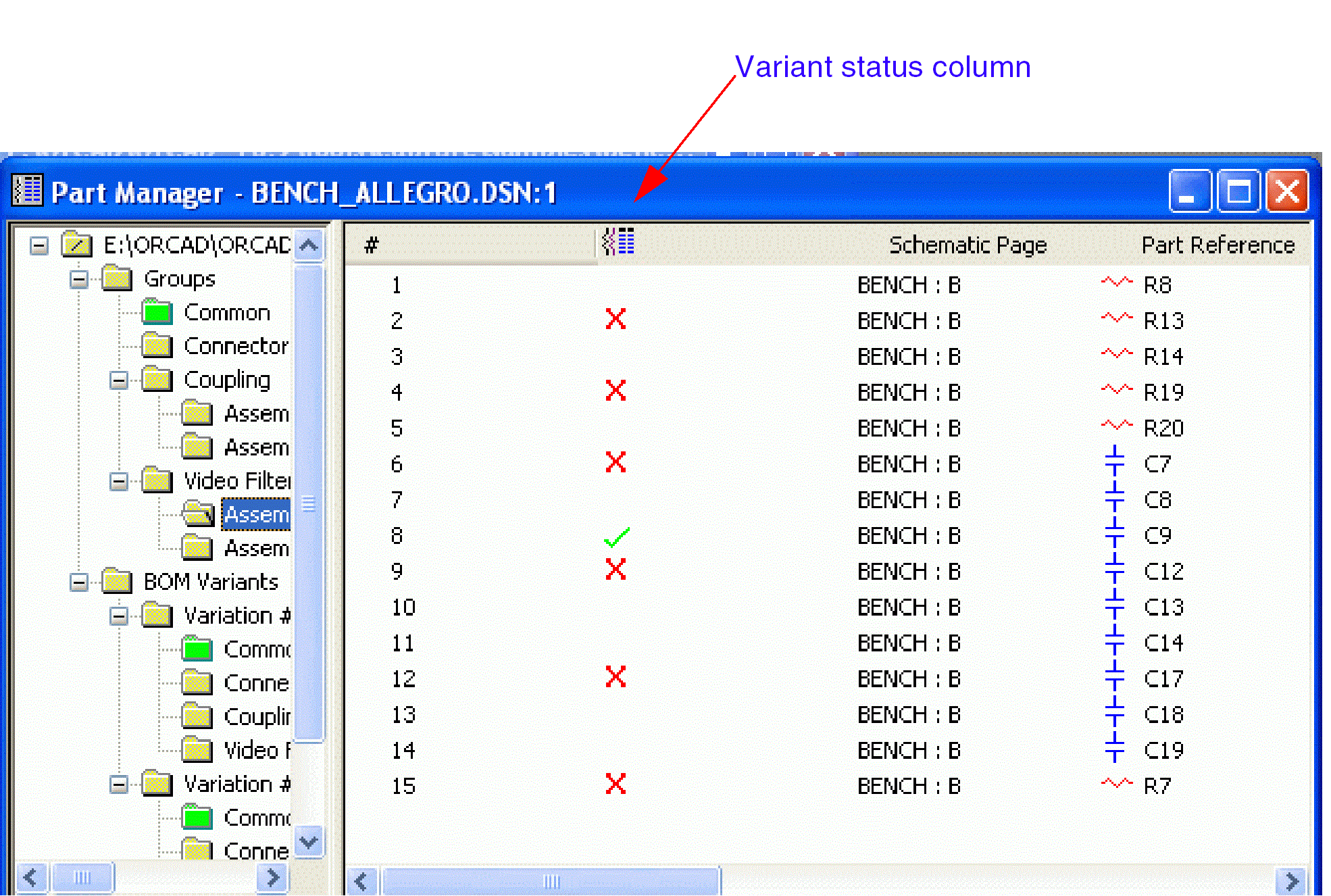
A red X appears in the variant status column next to each part you have set as not present.
To set a part as present, do the following:
- In the part manager tree view, look in the Groups folder and select the group or subgroup that contains the part or parts you want to include in the design variant.
- In the part manager list view, select the part or parts you want to set as present. Parts that are not present are indicated with a red X.
- From the Edit menu, choose Set Part As Present. This command is also available when you right-click on the part or parts you want to reset.
The red X disappears from the part status column, indicating that the part is present in the design variant.
If you had already updated the component by linking it, the linked value returns when you set the part as present.
Resolving Part Ambiguity
Part ambiguity occurs when two parts with the same part reference but different statuses, such as present and not present, are used in the same BOM variant. Because groups and subgroups may contain the same components, you may have dragged two different groups with the same part into a BOM variant folder. This creates ambiguity as to which part’s properties are used in the BOM variant. You may choose the one that is set as not present.
Part ambiguities must be resolved before you create a bill of materials report. A blue question mark in the Part Status column of the part manager window indicates part ambiguity.
To resolve ambiguous parts, do the following:
- Select the BOM variant folder that contains the part ambiguity.
-
From the Edit menu, choose Resolve Ambiguity. The Resolve Ambiguity dialog box appears.
You can also resolve a part ambiguity using the Resolve Ambiguity button (
 ).
). - View the properties of each part occurrence listed in the Resolve Ambiguity dialog box. The property or properties that differ are highlighted.
- Select one of the occurrences and click OK. The part status of the selected occurrence updates, and a green question mark appears next to all other occurrences of the part in the status column of the part manager window. The green question mark indicates that the parts are not used in the BOM variant, and that the part ambiguity has been resolved.
If the same component is part of multiple groups and subgroups that are part of the same BOM variant but the properties of these components are identical, no ambiguity exists.
View the next document: 10 - Viewing Design Variants on a Schematic Page
If you have any questions or comments about the OrCAD X platform, click on the link below.
Contact Us