10 - Viewing Design Variants on a Schematic Page
OrCAD X Capture CIS allows you to view variant information for all the design variants defined in your project. The variant information includes different property values for common components or different or not present components for identical footprints on a schematic page. You can use the Variant View Mode command to display the variant information on a schematic page. You can also search for a specific design variant component on a schematic page.
The Variant View Mode command is available for selection only when a design variant is created in your project’s part manager.
To view design variants on a schematic page, do the following:
- From the schematic page editor or the project manager, select the View menu and choose the Variant View Mode command.
The Select a Design Variant dialog box appears.
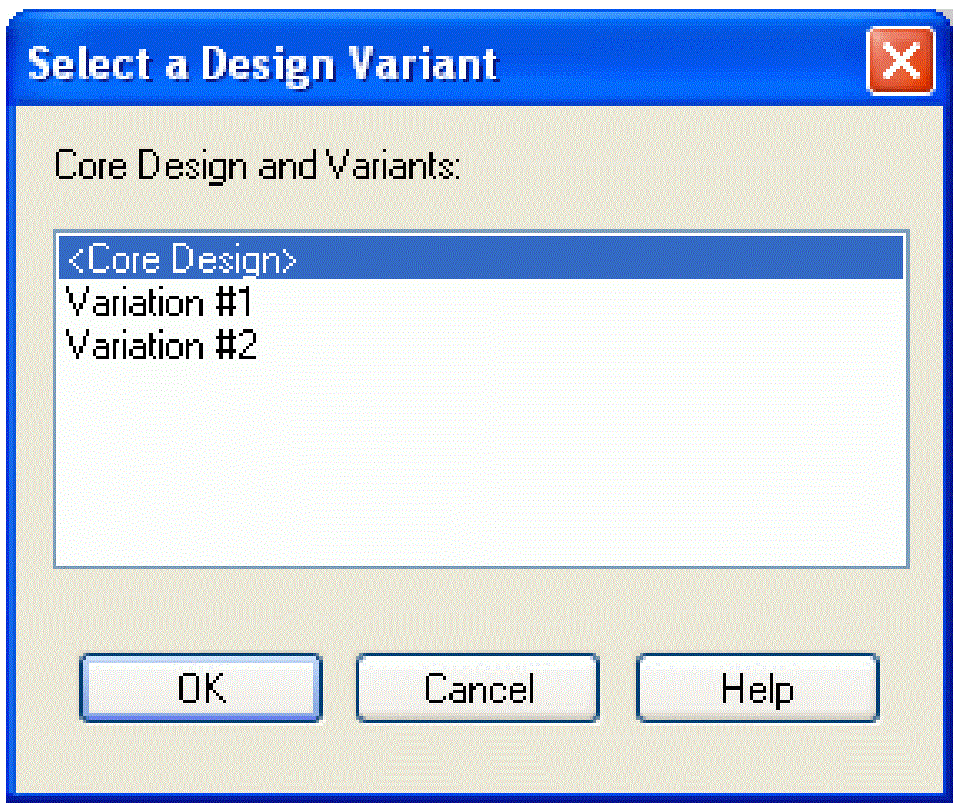
You can also access the Select a Design Variant dialog box using the SHIFT+M shortcut key. - Select the design variant for which you want to display the variant information from the Core Design and Variants list and click OK. For example, Variant 1.
Note that you can select only one design variant at a time from the Core Design and Variants list.
A message box appears asking you whether you want to save your core design at this stage. This message box appears only when the core design has changed from last time. - Click OK in the message box.
- The core design is saved and the currently open core design schematic page(s) in the project changes to the design variant schematic page you selected in step 2. The title bar of the design variant schematic page displays the name of the selected design variant. In this case, Variant 1.
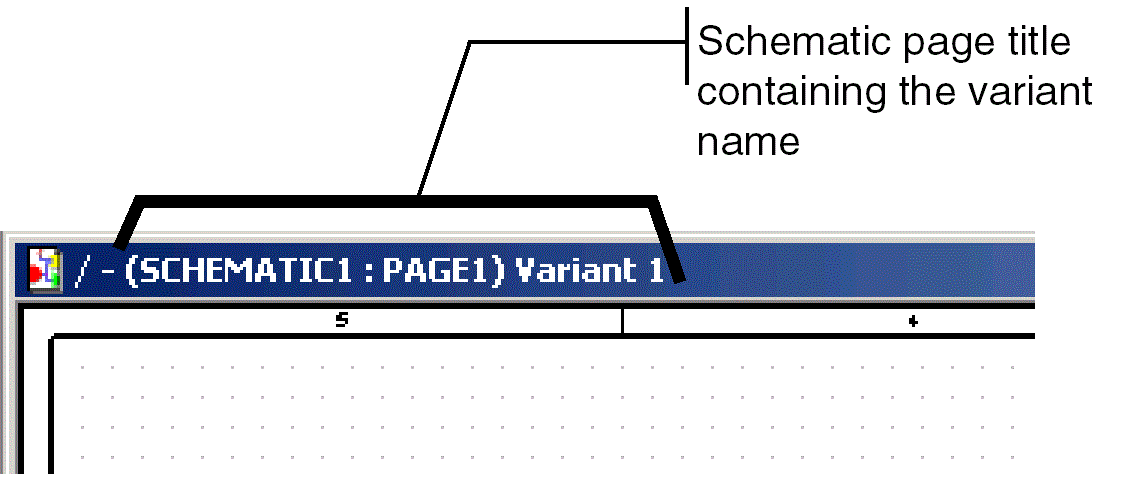
The design variant schematic page; Variant 1 displays the components that are not present in the design or the common components having alternate properties in a different color than the other core design components. This helps you to identify the variants from the core design components.
From the design variant schematic page, you can view the properties for a part, but cannot edit it.
The automatic backup and save functionality for the project is not available when the design variant schematic page is open. Also, you can switch to another design variant schematic page from your current variant schematic page using the Variant View Mode command.
Note that the Accessories menu is not available for selection, when the design variant schematic page is open. From design variant schematic page, you cannot open the part manager. To do this, you must switch to the core design.
Switching Back to Core Design
To switch back to core design schematic page, do the following:
- From the design variant schematic page, select the View menu and choose the Variant View Mode command. The Select a Design Variant dialog box appears.
- Select <Core Design> from the list.
- The design variant schematic page(s) revert back to core design schematic page.
You can also use the F6 Function key to switch to core design schematic page from your current design variant schematic page.
Searching for Variant Information on a Schematic Page
You can use the Find or the Browse command to search for variant parts that are not present in a design or parts having different property values for common components on a design variant schematic page.
To search using the Find command, do the following:
- From the design variant schematic page or project manager, select the Edit menu and choose the Find command. The Find pane appears.
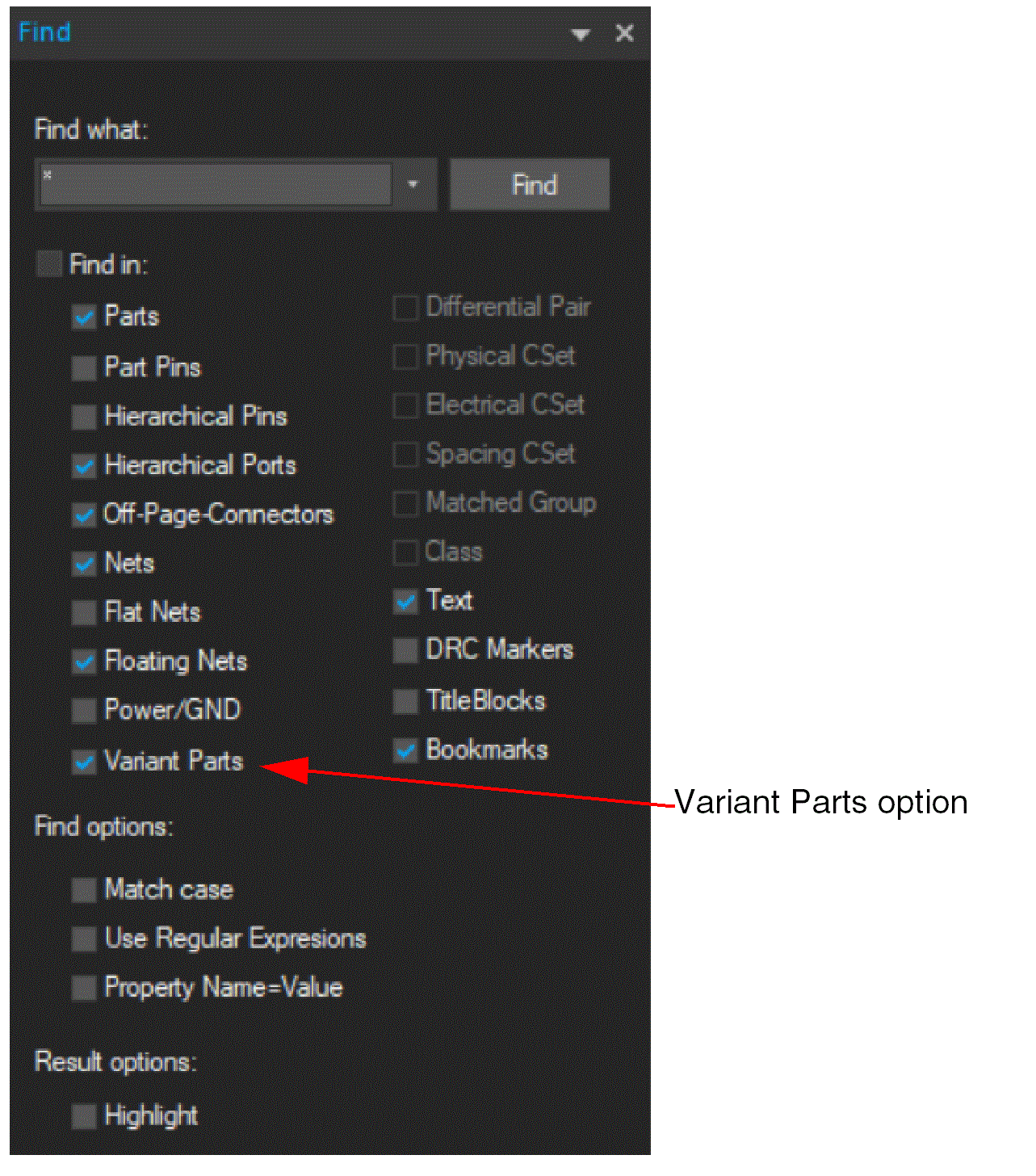
- Enter the property value string for the variant part you seek. You can use wildcard characters (standard "*" or "?") with a truncated search. For example, to search for resistors, enter "R*" in the Find what text box.
- Verify that the Match case check box is set as you want it.
- Select Variant Parts from the object types in the Find in section of the dialog box.
Note that the Variant Parts option will not be available from the design variant schematic page or the core design, if you project does not have design variants. - Click Find to start the search. Parts that have a property value matching the property value string in step 3 are selected on the schematic.
You can have part occurrences in a variant with different properties.
Customizing Variant Information Display on a Schematic Page
You can customize how you want to display the design variant information on a design variant schematic page. Thus, making it easier for you to identify a variant part on a design variant schematic page.
You can choose from different color combinations to display the variant information. For example, you can display parts that are not present in a design in a different color than the parts having different properties for the common components.
To customize variant information display, do the following:
- From the Capture CIS opening window or project manager, or a schematic page, select Options and then select Preferences. The Preferences dialog box displays.
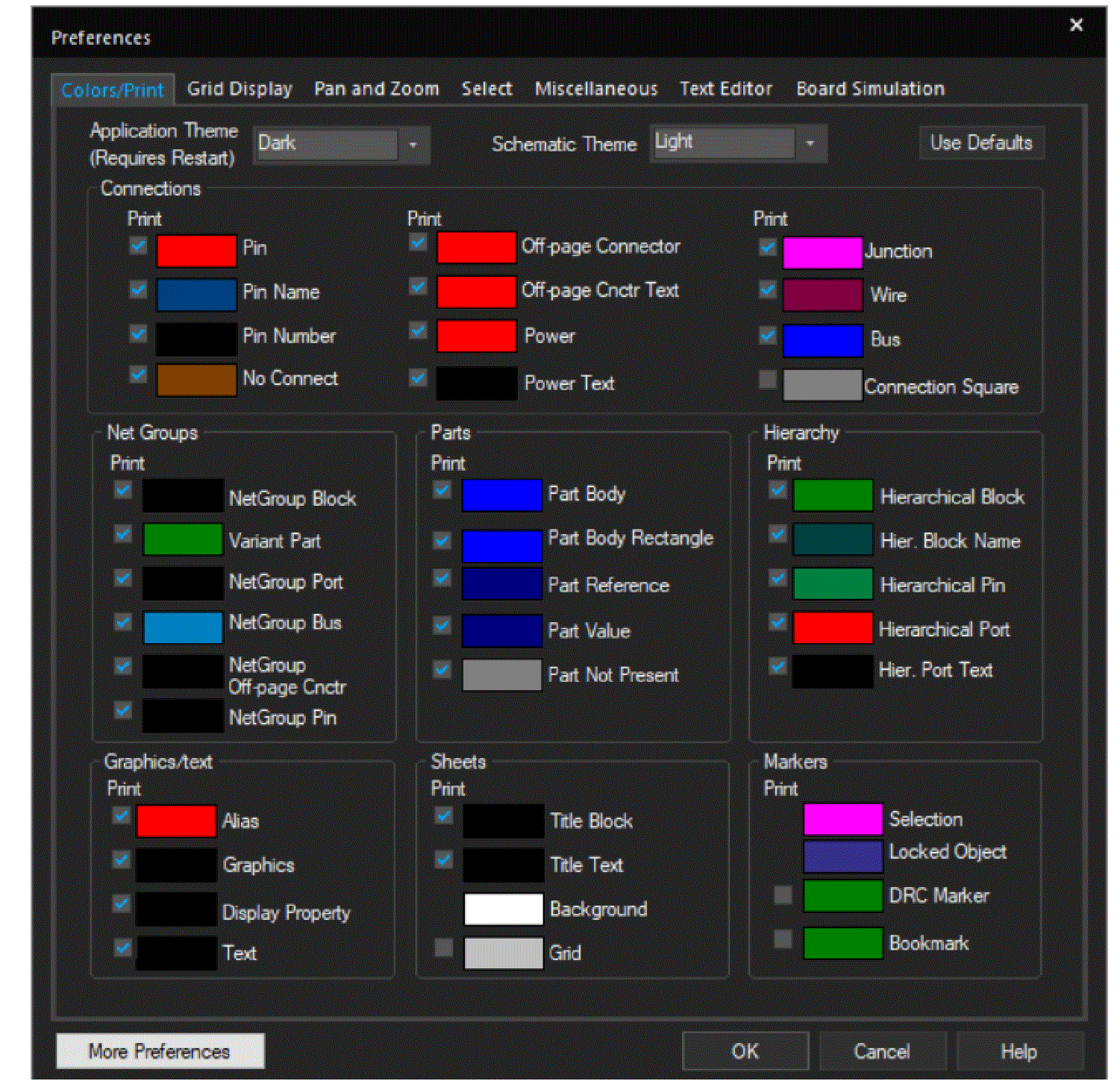
- Click the color button adjacent to Variant Part or Part Not Present options. The Variant Part Color or Part Not Present Color dialog box appears.
- Select the check boxes, if you want variant information to appear when you print or plot the schematic page.
- Select a color of your choice and click OK. The color you chose is set as the default color. From next time, the variant information will be displayed in the chosen color.
Viewing Variant Properties
You can use the variant property viewer window to view properties for a specific variant.
The variant property viewer is view-only. You cannot change the variant properties using this window.
To open variant property viewer, do the following:
- Switch to the design variant schematic page using the Variant View Mode command.
- Select some combination of parts, nets, pins, title blocks, or aliases in the design variant schematic page editor and then choose Properties from the Edit menu or choose Edit Properties from the pop-up menu.
OR
From the project manager, choose Object Properties from the Edit menu or choose Edit Object Properties from the pop-up menu.
The variant property viewer window appears displaying the variant information in pink color.
Viewing Variant Name in Title Block
When switching from core design to a design variant schematic page, the design variant name will appear in the Title Block of the design variant schematic page only when you have specified the Variant Name property in the property editor window.
To add the Variant Name property, do the following:
- From the core design schematic page, select the title block and choose Properties from the Edit menu or choose Edit Properties from the pop-up menu. The property editor window appears displaying the properties defined for the title block object.
- Click New Column/Row. The Add New Column/Row dialog box appears.
- Enter the property name as Variant Name (case-sensitive) in the Name text box and click OK. The Variant Name property appears in the property editor window.
Note: The Variant Name property is case-sensitive. - Select the Variant Name property in the property editor window and click Display in the property editor window. The Display Properties dialog box appears.
- Select the Name and Value option from the Display Format group and click OK in the Display Properties dialog box.
- Click Apply in the property editor window to save the settings. Now, the next time you switch from the core design to a design variant schematic page, the Title Block of the design variant schematic page will display the design variant name.
Previewing or Printing Design Variant Schematic Pages
You can use the Print Preview command to verify whether the variant information appearing on a design variant schematic page is what you want before you commit it to paper. Use the Print command (CTRL+P) to print the design variant schematic page.
To preview print output of the design variant schematic page, do the following:
- From the design variant schematic page or project manager, select the File menu and choose the Print Preview command. The Print Preview dialog box appears.
- Specify the preview settings as per your requirement.
-
Click OK. The preview of the currently active design variant schematic page is displayed.
You can print the variant information on a design variant schematic page only when the Variant Parts and Parts Not Present check boxes are selected in the Colors/Print tab on the Preferences dialog box.
To print a design variant schematic page, do the following:
- From the design variant schematic page or project manager, select the File menu and choose the Print command. The Print dialog box appears.
- Specify the print settings as per your requirement.
- Click OK. The currently active design variant schematic page is printed.
View the next document: 11 - Accessing Dynamic BOM with Live BOM
If you have any questions or comments about the OrCAD X platform, click on the link below.
Contact Us