07 - Groups, Subgroups, and BOM Variants
In CIS, you can organize components with various properties into groups and subgroups used to create bill of materials (BOM) variants. In the part manager window, you can sort components into groups and subgroups to create bill of materials (BOM) variants for a core design. These groups and subgroups, which are collections of parts used together, provide greater convenience for assembling bills of materials for design variants.
Creating BOM Variants for Core Design
BOM variants are the versions of the design that are eventually manufactured. A BOM variant folder contains groups, subgroups, and common components for a particular design variant.
You create BOM variants in the BOM Variants folder in the tree view from groups and subgroups that you have defined. When you create a new BOM variant using the New BOM Variant command, the folder appears to contain all parts in the core design. However, all parts are undefined, indicated by a yellow question mark. Components become defined as you drag them in from the Groups folder. You click and drag the Common folder from the Groups folder to the design variant folder to define the remaining components.
When you drag a group or subgroup folder into the BOM variant folder to populate it, the part status of each component in that group or subgroup changes in the BOM variant from a yellow question mark to whatever the part status is in the original group or subgroup.
You can create a new BOM variant using the following methods:
- New BOM Variant command.
- Copy command (copy a BOM variant). Use this command to create a BOM variant that is similar to an existing BOM variant. When you copy the information contained in a BOM variant, the new BOM variant contains all the BOM variant groups, subgroups, and component information contained in the source BOM variant.
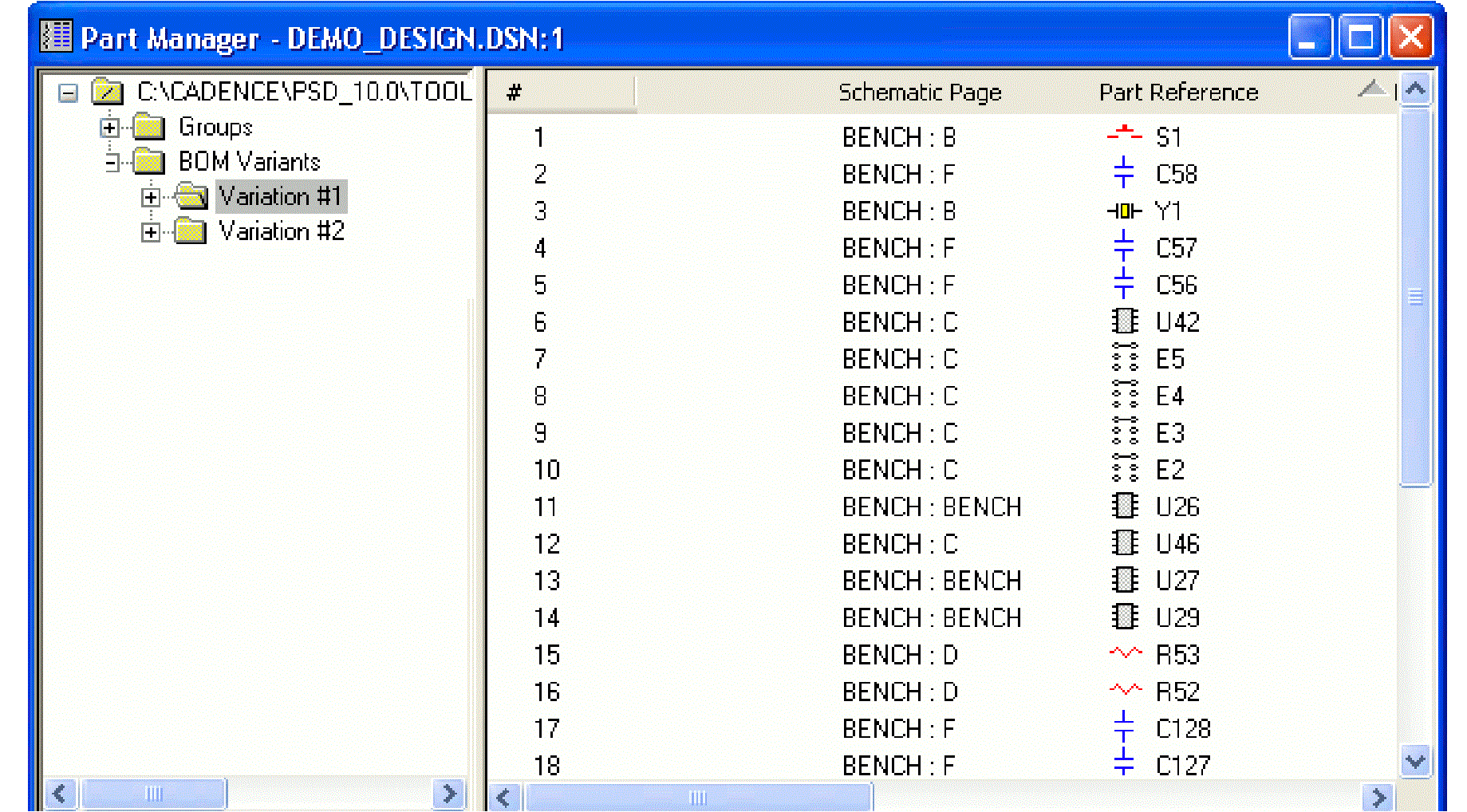
To create a BOM variant, do the following:
- In the part manager tree view, select the BOM Variants folder.
- From the Edit menu, choose New. The New BOM Variant dialog box appears. Or right-click on the BOM Variants folder and choose New BOM Variant from the pop-up menu.
- Type the new BOM variant name in the text box and click OK. The new BOM variant folder appears in the list view and the tree view of the part manager window.
Creating Groups and Subgroups
You create groups and subgroups in the Groups folder to make building BOM variants easier. A newly created group is empty and does not contain any components or subgroups. A group can have any number of subgroups. Each subgroup within a group contains the same set of components as the parent group, although the components may have different component properties in each subgroup.
When you create a subgroup in a group that already contains components, all of the components move to the subgroup. When you create a subgroup in a group that contains another subgroup, the new subgroup contains the same components as the existing group.
The part manager's tree view provides a graphical interface for easily creating groups, subgroups, and BOM variants. Within the tree view, you can link a database part or update a part's status.
You can link and view a part or update its status from within a group, but you cannot update a database part from within a BOM variant folder.
To create a group, do the following:
- In the part manager's tree view, select the Groups folder.
- From the Edit menu, choose New Group Or right-click and choose New Group from the pop-up menu. The New Group dialog box appears.
-
Type the new group name in the text box.
Do not use the reserved words "groups", "common", or "BOM variant".
- Click OK. The new group folder appears in the tree view of the part manager window.
To create a subgroup, do the following:
- Select the group folder that you want to contain the new subgroup.
- From the Edit menu, choose New Subgroup. The New Subgroup dialog box appears.
- Type the new subgroup name in the text box and click OK. The new subgroup folder appears in the list view of the part manager window.
To create a subgroup in a group that is part of a BOM variant, do the following:
- Remove the group from the BOM variant.
- Follow the procedure above to create the new subgroup.
- Add the subgroup back to the BOM variant.
Populating Groups and Subgroups with Components
After establishing groups and subgroups, you can begin to populate them with design components. A group can contain components or subgroups, but not both. When you create one or more subgroups, the components that were in the group folder move into each of its subgroup folders.
You can populate a group with components using any of the following methods:
-
Select components in the list view while you drag and drop them into a group folder.
You cannot add components directly into a subgroup.
-
Copy a group or subgroup folder to create a new group or subgroup with components from the source group. When you copy a component, you copy its part status and properties.
Whenever you change information in a group that is participating in a BOM variant, the BOM variant is affected. For example, if you remove any component from a group participating in a BOM variant, the component is also removed from all BOM variants containing that group.
To populate groups and subgroups, do the following:
- In the part manager tree view, select the group folder that contains the component or components you want to copy.
- In the list view, select the component or components you want to copy.
- From the Edit menu, choose Copy Or right-click and choose Copy from the pop-up menu.
- Select the target folder in the tree view.
- From the Edit menu, choose Paste Or right-click on the target folder and choose Paste from the pop-up menu.
Or
→ After selecting the components you want to copy, hold the Ctrl key while you drag and drop the component set into the target folder.
If you select a component from a group or subgroup and drag it to another folder without holding the Ctrl key, the component will be moved, not copied.
Copying a component from one group to another, making the same component exist in more than one group, may cause a design to contain ambiguous parts.
Modifying Groups and Subgroups
In the part manager window, you can also modify the groups and subgroups. You can perform the following tasks:
- Copying Groups, Subgroups, and BOM Variants
- Renaming Groups, Subgroups, and BOM variants
- Deleting Groups, Subgroups, and BOM variants
- Changing Groups of Components from the Schematic Page Editor
Copying Groups, Subgroups, and BOM Variants
Often several groups or subgroups differ by only a few component variations. You can easily create groups and subgroups using the Copy command. The new group contains all the components and subgroups from the source group. Copying a group or subgroup copies the component variations, like part status and property differences, into the new group or subgroup.
To copy groups and subgroups, do the following:
- In the part manager window tree view, select a group or subgroup whose contents you want to copy.
- From the Edit menu, choose Copy. Or right-click on the selected folder and choose Copy from the pop-up menu. Depending on which folder you are copying, the Copy Group or Copy Subgroup dialog box appears.
- Type the name of the new group or subgroup in the text box and click OK. The new folder appears in the tree view of the part manager at the same hierarchical level as the source.
Renaming Groups, Subgroups, and BOM variants
You can change the name of an existing group or subgroup using the Rename command. When you rename a group or subgroup that was dragged into a BOM variant folder, the folders in that BOM variant folder are also renamed.
To rename groups and subgroups, do the following:
- In the part manager tree view, select the group or subgroup you want to rename.
- From the Edit menu, choose Rename. Or right-click on the selected group or subgroup and choose Rename from the pop-up menu. The Rename Group or Rename Subgroup dialog box appears, depending on whether you have selected a group or subgroup.
- Type the new group or subgroup name in the text box and click OK.
- Click Yes to dismiss the confirmation message window and complete the operation. The renamed group or subgroup appears in the part manager tree view. If the group is participating in any BOM variants, the name of the group or subgroup within the BOM variant automatically changes.
Deleting Groups, Subgroups, and BOM variants
When you delete a group, its subgroups are also deleted. If the folder has been dragged into a BOM variant folder, the folder and its contents are no longer part of the BOM variant.
When you delete a group or subgroup, any of its components that do not still belong to another group move to the Common folder. If you delete all of the subgroups in a group, the components stay in the group folder.
To delete groups, subgroups, and BOM variants, do the following:
- In the part manager window tree view, look in the Groups folder and select the group or subgroup you want to delete.
- From the Edit menu, choose Delete Or right-click on the selected group or subgroup and choose Delete from the pop-up menu.
Or
Press the Delete key. - Click Yes to dismiss the confirmation message window and complete the operation.
Removing Components from Groups and Subgroups
Removing a component or components from a group or subgroup that is used in a bill of materials (BOM) variant changes the component's properties and status in the BOM variant to the same as those of the component in the core design. When you remove a part from a group or subgroup, it moves into the common folder unless it is still in use by another group or subgroup.
To remove components from groups and subgroups, do the following:
- In the part manager tree view, find the group or subgroup that contains the part or parts you want to remove.
- Click the group or subgroup folder to show the parts in the list view and select the part or parts you want to remove.
- Select the part or parts you want to remove from the group or subgroup.
- From the Edit menu, choose Remove. Or right-click on the selected component or components and choose Remove from the pop-up menu.
- Click OK in the message box to remove the part or parts from the group or subgroup.
Removing a component from a subgroup removes it from all subgroups in the parent group.
Changing Groups of Components from the Schematic Page Editor
Once you have defined design variant groups and subgroups in the part manager, you can add or remove components from groups while you are working in the schematic page editor. When you add a part to any group that contains subgroups, all subgroups are populated with the part. Similarly, when you remove a part from a group, it is also removed from all of the group's subgroups.
You can add components to existing groups or subgroups, or remove components from existing groups or subgroups without switching the view from the schematic page editor to the part manager window.
Adding Parts to Groups from the Schematic Page
After you have defined design variant groups in the part manager, you can add components to groups while you are working in the schematic page editor. When you remove a part from any group that contains subgroups, the part is removed from the subgroups.
To add parts to groups from the schematic page, do the following:
- In the schematic page editor window, select the component or components you want to add to the group.
- From the Edit menu, choose Add Part(s) To Group. Or right-click on the selected component and choose Add Part(s) To Group from the pop-up menu. The Add Part(s) dialog box appears.
- Select the group or groups to which you want to add the components and click the Add button.
- Click OK to dismiss the confirmation message window
Removing Parts from Groups from the Schematic Page
Once you have defined design variant groups in the part manager, you can remove components from groups while you are working in the schematic page editor. When you remove a part from any group that contains subgroups, the part is removed from the subgroups.
To remove parts to groups from the schematic page, do the following:
- From the schematic page editor window, select the component you want to remove from the group.
- From the Edit menu, choose Remove Part(s) From Group. Or click the right mouse button and choose Remove Part(s) From Group from the pop-up menu. The Remove Part(s) dialog box appears.
- Select the group from which you want to remove the components and click the Remove button.
- Click OK to dismiss the confirmation message window.
View the next document: 08 - Viewing and Updating Part Status
If you have any questions or comments about the OrCAD X platform, click on the link below.
Contact Us