How to Use “Where Used” Functionality in OrCAD X CIP for Obsolescence and BOM Risk Analysis
Fully Rewritten Final Version
Many PCB development teams reuse proven circuitry across multiple products, variants, and revisions to accelerate design. That reuse improves efficiency, but it also creates risk when a component becomes obsolete, constrained, or non-compliant. If one part appears in several active designs, engineering needs a fast way to understand the full impact before procurement issues turn into redesign delays or production disruptions.
Where Used functionality in OrCAD X CIP helps solve that problem by showing where a selected component appears across uploaded bills of materials (BOMs). Instead of checking projects manually, engineers can identify affected BOMs, evaluate design exposure, and plan replacement activity based on actual usage. When combined with sourcing and lifecycle intelligence, Where Used analysis becomes an effective workflow for BOM risk reduction, obsolescence response, and design reuse management.
Why Where Used Analysis Matters
A part that satisfies electrical requirements is not automatically safe to use in production. Engineers also need visibility into lead times, availability, lifecycle status, compliance exposure, and approved alternates. That is why modern teams increasingly manage component decisions with a combination of supply chain data, centralized component library management, and part-level traceability across existing projects. Where Used functionality supports that strategy by helping engineers understand not just whether a part is risky, but exactly where that risk exists.
This is especially important for reuse-heavy organizations. If an obsolete capacitor, connector, or controller appears in multiple BOMs, a single sourcing problem can affect several released designs at once. With clear impact visibility, teams can prioritize the right updates, validate replacements sooner, and take advantage of approved secondary sources before the issue cascades into manufacturing or procurement delays.

Upload a BOM to Establish Design Traceability
1. Open the target design in OrCAD X Capture CIS. The selected design should already use components that exist in your component database.
2. Choose CIP > Open CIP from the menu. If prompted, log in with your user credentials.
3. In the CIP sidebar, select BOMs > View/Import. Project BOMs must be uploaded before Where Used analysis can identify design references.
4. Select the + icon to create a new BOM record.
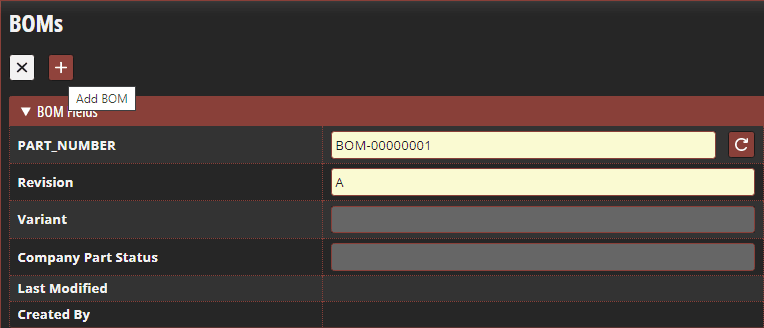
BOM Management in CIP
5. Enter a part number for the BOM or use the auto-generate option to assign the next available BOM number.
6. Enter the BOM revision and any additional metadata required by your process.
7. Select the + icon again to add the BOM using the values you defined.
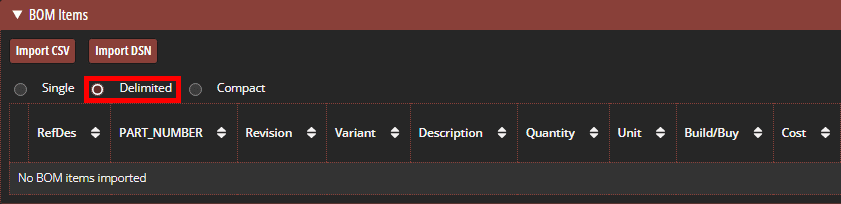
Creating a BOM in CIP
8. Choose Delimited for the BOM view. This displays each part number on a single line while listing reference designators as a comma-separated set. Other supported views include Single (each reference designator is shown on a single line) and Compact (each part number is shown on a single line where reference designators are shown as ranges or a comma separated list).
9. Choose whether to import the BOM from a CSV file or from an open design. To use the active design, select Import from DSN.
10. Confirm that the correct design is selected in the BOM Import window, then choose Import BOM. Successful import requires all components in the design to be present in the component database.
Uploading BOMs is more than an administrative step. It creates the data foundation needed for cross-project impact analysis. Once BOMs are in the system, engineers can move beyond isolated part checks and use CIP as a shared source for design history, reuse visibility, and component governance. This aligns well with broader workflows around real-time component sourcing and supply chain visibility, where the goal is to evaluate part risk with context from both current sourcing conditions and actual design usage.
Search for Obsolete or High-Risk Components
11. From the main CIP menu, expand Search and select CIS Database.
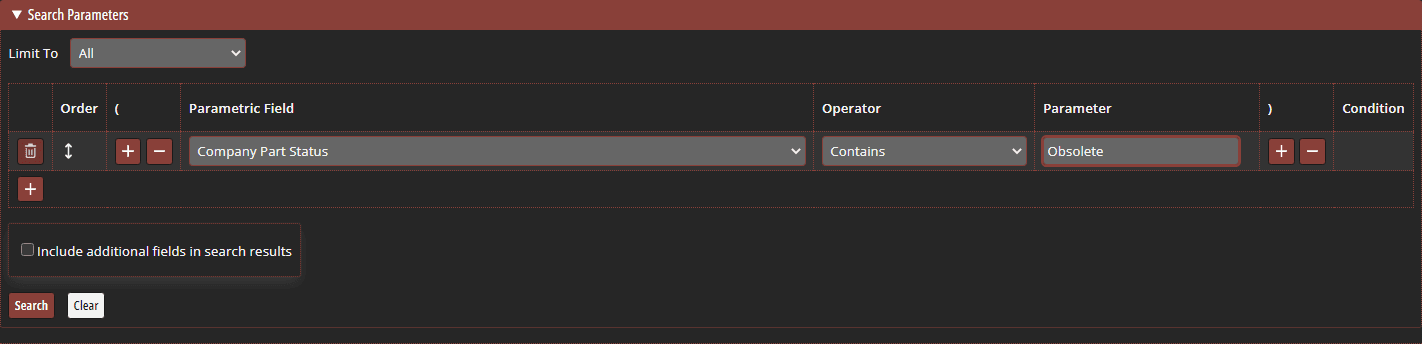
Configuring a Database Search in CIP
12. Set the Parametric Field to Company Part Status. If needed, you can alternatively search Manufacturer PN Status.
13. Confirm that the Operator is set to Contains.
14. Enter Obsolete in the Parameter field. You can add more fields with the + control if you want to refine the search further.
15. Select Search. CIP returns any components marked obsolete in the selected status field.
This search stage is where context matters. An obsolete part may only require minor cleanup if it appears in a legacy design that is no longer active. The same part can become a high-priority issue if it appears in several current products. Teams can improve triage by combining Where Used results with real-time PCB component selection, lifecycle monitoring, and supply chain and compliance management so replacement decisions address availability, regulatory fit, and sourcing continuity at the same time.
Review Where Used Results to Measure Impact
16. Select the desired part number from the search results to open the component details.

Identifying Obsolete Components in CIP
17. Review the Where Used field or tab to see how many BOMs reference that component.
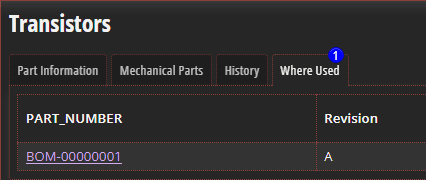
Where Used in CIP
18. Open the related BOM or usage list to determine which designs, revisions, or products are affected.
19. Prioritize active or production-bound BOMs first so replacement activity is aligned with real business impact.
20. For each affected BOM, assess whether the part should be replaced immediately, monitored for risk, or supported with an approved alternate.
Where Used data is most valuable when it leads directly to action. Once affected BOMs are identified, engineering can decide whether to update the design, validate an alternate source, or add approved vendor options in the library. This is where reuse visibility and sourcing strategy converge. A controlled library that already contains validated alternates helps teams shorten response time and reduce disruption when component availability changes.
Best Practices for Using Where Used Functionality in CIP
- Upload BOMs consistently so the usage database reflects current projects and revisions.
- Standardize part status fields in the component database to improve search accuracy.
- Review Where Used results as part of routine lifecycle, compliance, and sourcing audits.
- Document approved alternates in the component library rather than managing them in disconnected spreadsheets.
- Use Where Used analysis early when shortages or obsolescence warnings appear, not only after a part becomes unavailable.
Conclusion
Where Used functionality in OrCAD X CIP gives engineering teams a practical way to connect component risk with actual design exposure. Instead of treating obsolescence as a part-level issue, teams can evaluate the full BOM and product impact before changes are required under deadline pressure.
By combining BOM traceability, lifecycle awareness, sourcing intelligence, and approved alternates, Where Used analysis supports faster decisions and more resilient PCB development workflows. For organizations managing reusable IP and evolving supply chains, it is a valuable capability for protecting both design continuity and production readiness.