04 - CIS User Interface
The CIS user interface includes standard Windows interface functionality along with a few additional features to make your work environment easy to use. You can also customize the layout of CIS windows for each of your Capture projects. The main CIS interface is comprised of the part manager and CIS explorer windows. Additional CIS menu commands are interspersed throughout the menus in Capture.
Right mouse button access for the most commonly used CIS commands is available in the project manager, schematic page editor, part manager, and CIS explorer windows.
The Part Manager Window

The part manager window is composed of a component property view in the right pane and a tree view in the left pane. The tree view is used for creating groups and subgroups of components for bill of materials variants. If you are not working with design variants, you can close the tree view.
You can adjust the work environment for the part manager in the following ways:
- Sort the part manager data by any one of the data columns.
- Adjust the part manager display by changing data column width and splitting the window into panes.
- Display the toolbar.
You can launch the Part Manager window from the Tools menu.
You can sort information in the part manager by clicking the heading of the column you want to sort by. You can also reverse the sort order by clicking the same column heading again.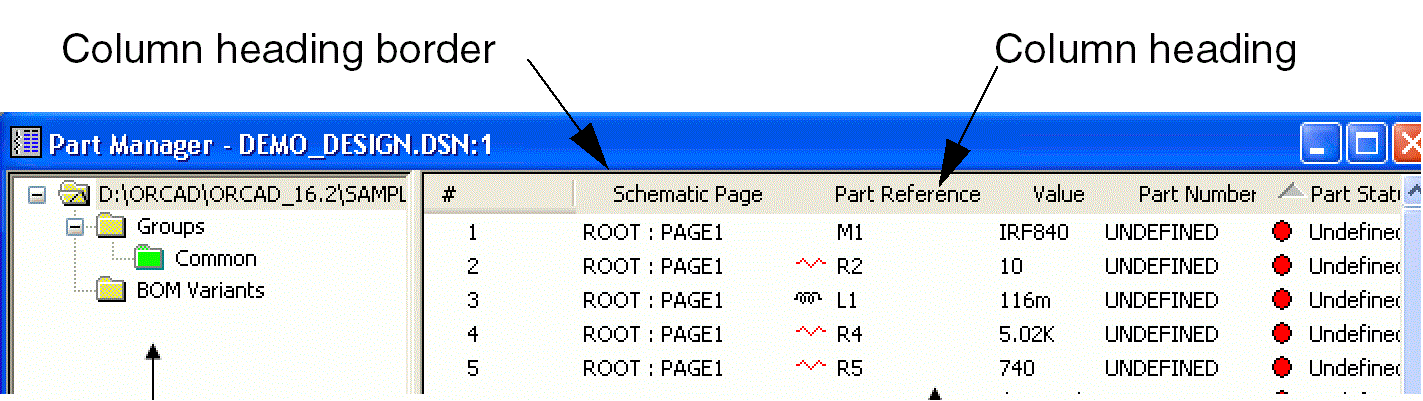
The column by which the data in the part manager is currently sorted is indicated by a triangle icon. If the triangle points upward, the data is sorted in ascending order. If it points downward, the data is sorted in descending order.
You can adjust the width of a column by selecting the right border of the column heading and dragging it to the left or right. You can also split the part manager into panes from the Window menu of the Part Manager.
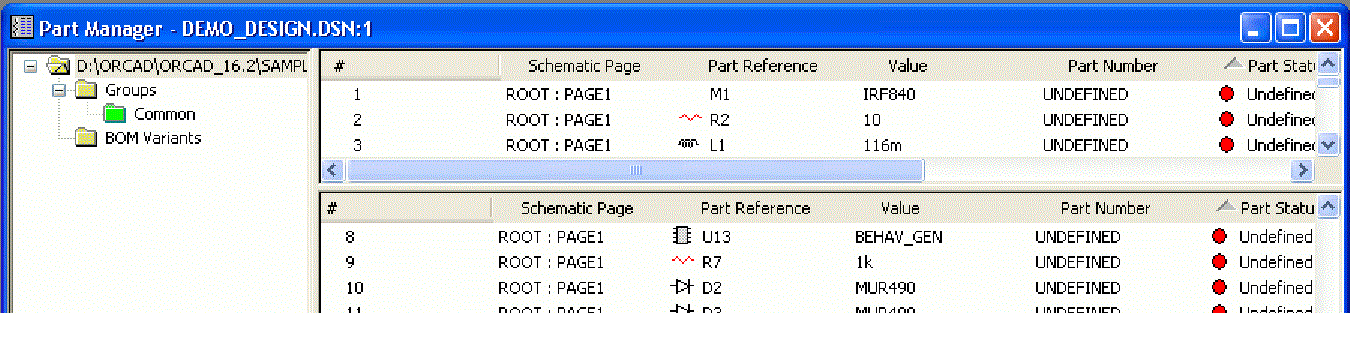
The part manager toolbar provides the toolbar options using which you can:
- Move or dock the toolbar as desired.
- Display the name of the button command, point at the button briefly.
- Display the toolbar using Toolbar from View menu of the Part Manager.
- Hide the toolbar using the Hide button in the top corner of the toolbar.
The CIS Explorer Window
CIS displays the CIS explorer when you choose Place Database Part or Link Database Part from a schematic page in Capture schematic page editor.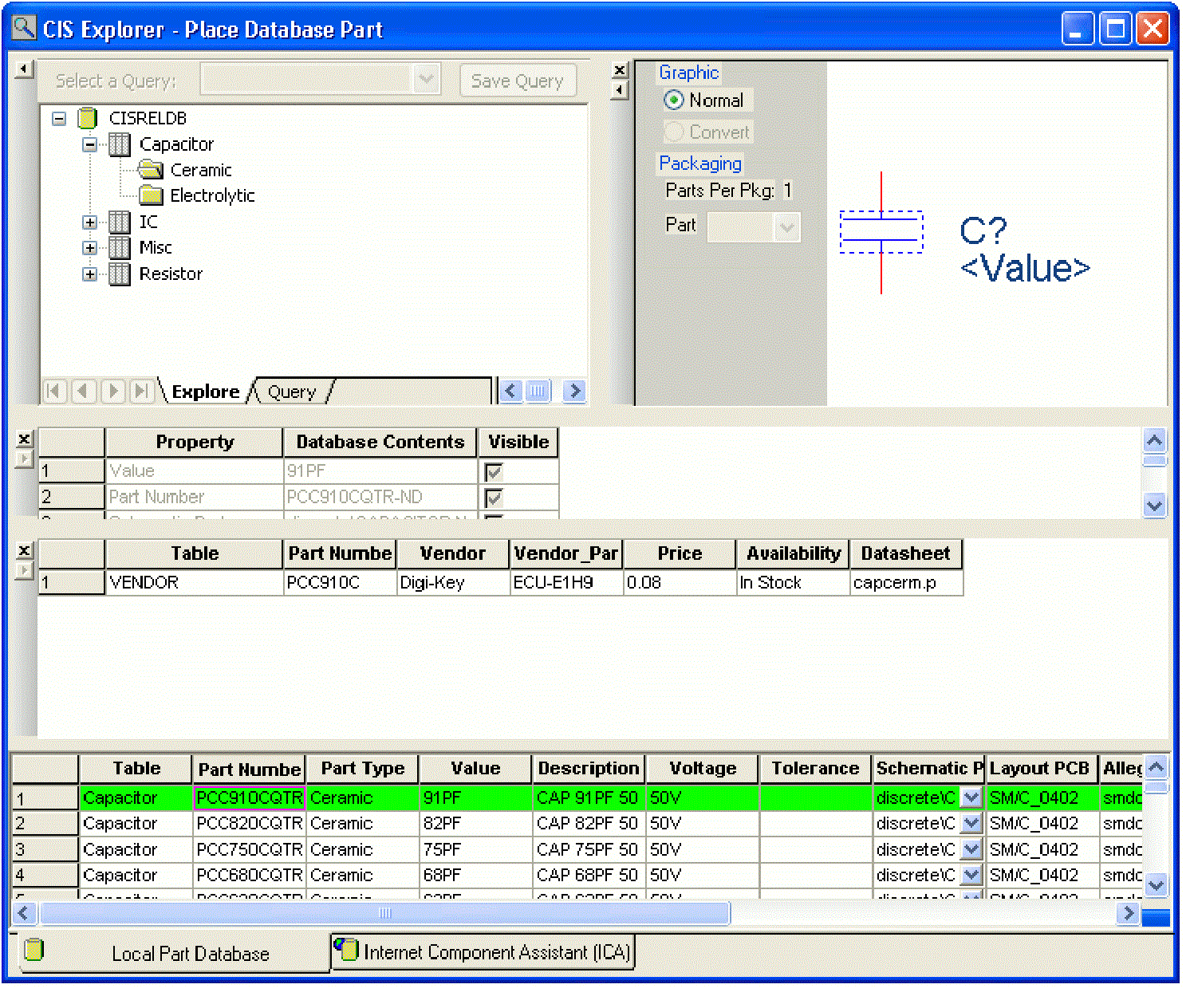
The CIS explorer contains a tabbed window—the Local Part Database. The window contains a non-docking part selection window that cannot be redisplayed as floating or hidden (the database parts window).
The Docking Windows
Docking windows can be positioned and sized independently like standard windows. But, they allow you added control over your workspace in relation to the other windows inside the CIS explorer. Docking windows have these unique features:
- Docking to the main window
- Expanding or contracting relative to other windows
- Floating over other docking windows
Depending on the function of the window, you can also choose to show or hide some docking windows. CIS retains the size, position, and state of the windows between Capture sessions.
You can dock a window in the CIS explorer by dragging the window by the double bar over another border of the CIS explorer. The other windows automatically adjust to allow the window you are moving to dock on that border. 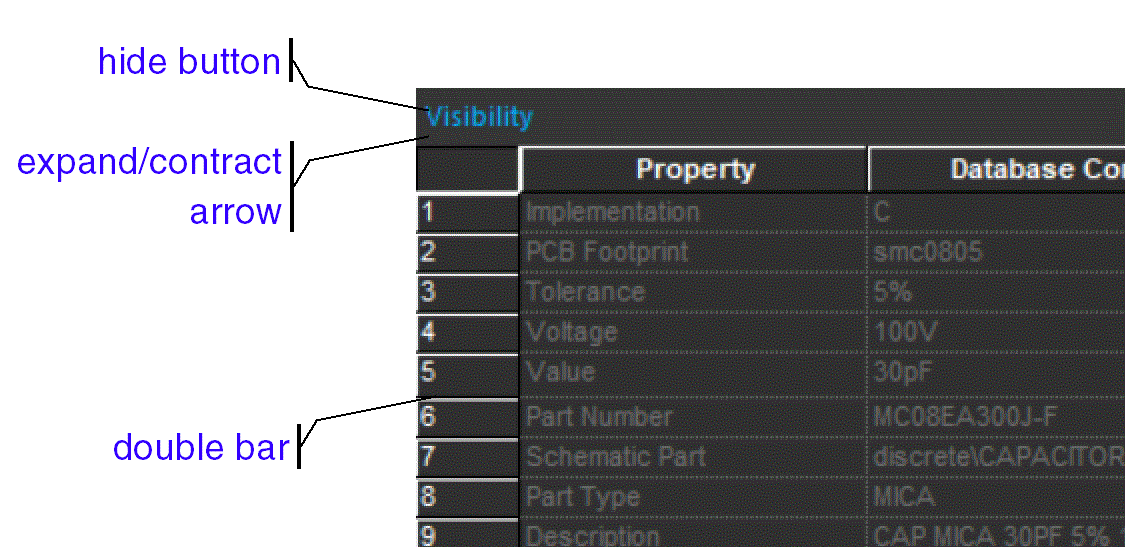
To expand or contract a window relative to other windows, use the horizontal and vertical splitter to expand and contract the windows.
Double-click the title bar to change a docked window to floating window to change a docked window to a floating window. Now, to dock a floating window, double-click the window title bar to return the window to its previous docked location, or drag the window by the title bar to a different docking border. 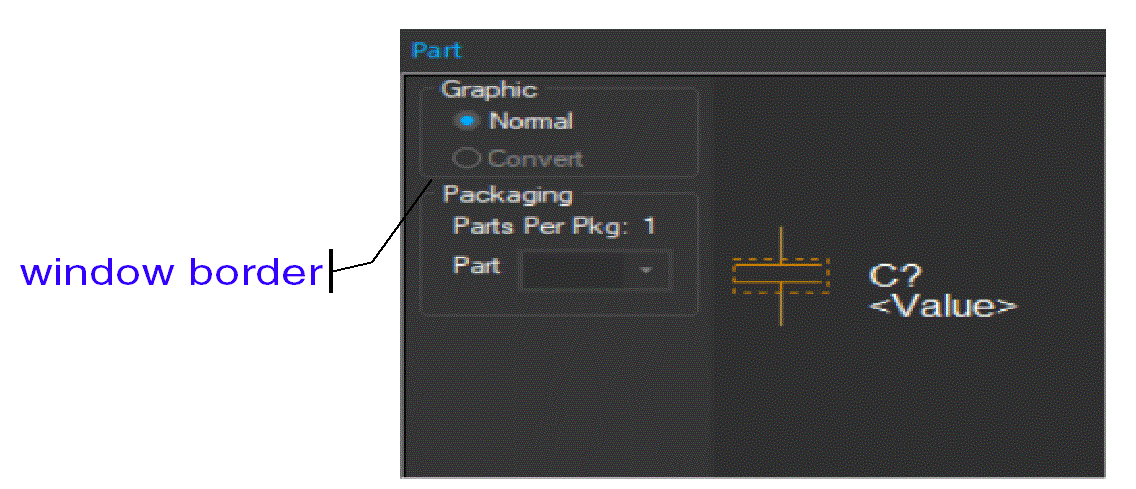
You can show or hide a window by selecting or deselecting the window name from the View menu.
The Database Parts Window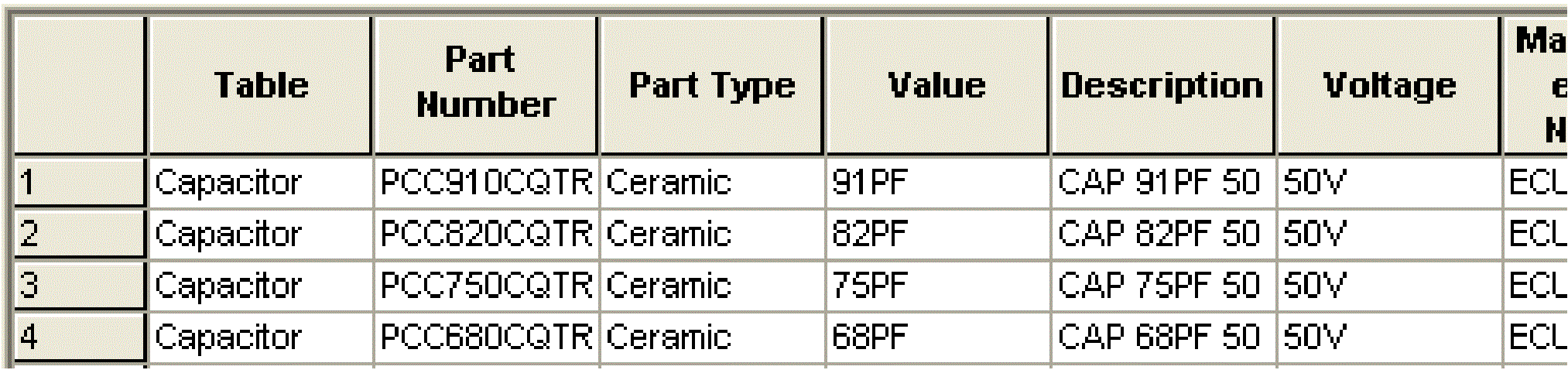
The spreadsheet format of the database parts window allows the following actions:
- Sort rows using column values
- Adjust column widths
- Change the order of the columns
- Hide or show columns
After you set up the columns, CIS saves the new settings for your next session.
The database parts window is part of the main CIS explorer window—you cannot hide. This is so that the window is present at all times to place and link database parts.
Roll the mouse wheel up and down to scroll through vertically in the database parts window. Hold down the SHIFT key and roll the mouse wheel up and down to scroll through horizontally. Click the mouse wheel button and drag it to the right or left in the database parts window to scroll horizontally. Click the mouse wheel button and drag it up or down in the database parts window to scroll vertically.
You can sort rows using column values. For this, you can click a column heading to select the column, then click the column heading again to sort by its values. Click the same column heading again to reverse the sort order.
The column by which the data is currently sorted is indicated by a triangle icon. If the triangle points upward, the data is sorted in ascending order. If it points downward, the data is sorted in descending order.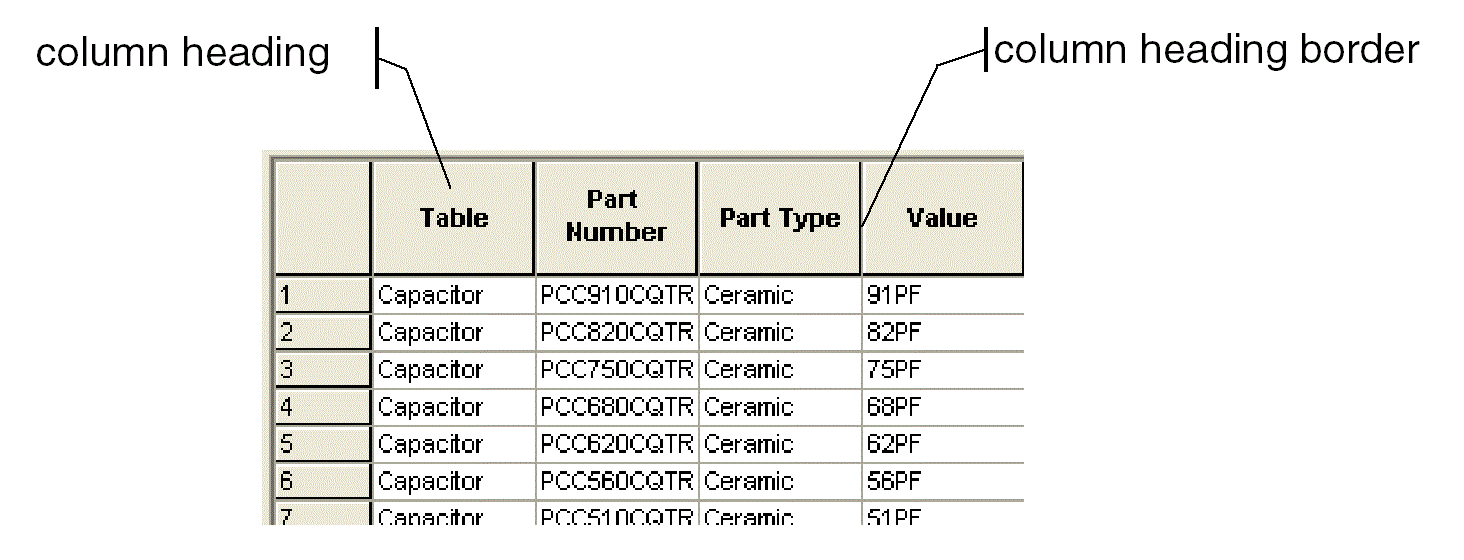
The column widths can be adjusted by selecting the right border of a column heading and dragging it to the left or right.
To change the order of the columns, do the following, click on a column heading to highlight it. Then, drag the column heading to the left or right until the vertical red line is in the correct location.
Hide and Unhide Columns
CIS keeps a separate column display configuration for each part type folder. So, when you hide or unhide a column, CIS only hides or unhides the column for the part type folder whose parts are currently displayed in the database parts window.
To hide columns, click a column heading to highlight it and right click the column heading, and choose Hide Column.
Click the right mouse button on any column heading, and choose Unhide columns to unhide the column. CIS displays the Unhide Columns dialog box.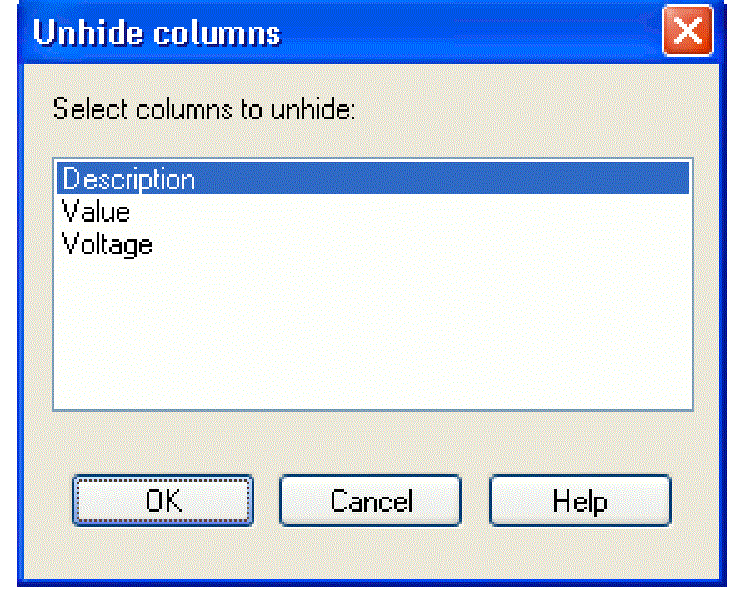
View the next document: 05 - Working with Database Parts
If you have any questions or comments about the OrCAD X platform, click on the link below.
Contact Us